

Pair your iPhone to your car through Bluetooth or Apple CarPlay in just a few simple steps.
Learning how to pair iPhone to car systems can make calls, music, maps, and messages much easier to manage on the road. The exact steps depend on whether your vehicle uses Bluetooth, wired CarPlay, or wireless CarPlay, but the process is usually quick once you know where to look.
Before you pair your iPhone to your car
Before learning how to pair iPhone to car technology, check a few basic details. Your iPhone should have a working Bluetooth connection, enough battery, and a current version of iOS. Your car should be parked, with its infotainment system turned on.
Keep your iPhone close to the dashboard during setup. Bluetooth pairing works over a short range, and distance or nearby wireless devices can sometimes cause trouble.
You may also need to remove an old phone from the car’s memory. Many vehicles can store several devices but connect to only one phone at a time.
Check these items first:
- Turn on Bluetooth on your iPhone.
- Start the car and activate its audio system.
- Park the car before changing connection settings.
- Keep your iPhone unlocked during the first setup.
- Have your vehicle manual nearby if the menu names are unclear.
- Update iOS if your phone has not been updated in a long time.
Apple CarPlay has different requirements from basic Bluetooth. Bluetooth can handle calls and audio, while CarPlay adds apps such as Maps, Messages, Phone, Music, and Podcasts to the car display.
How to pair iPhone to car using Bluetooth
Bluetooth is the most common way to connect an iPhone to a car. It works with most modern vehicles and many older stereos that support hands-free calling.
The names of the menus may differ by car brand. Look for options such as Phone, Bluetooth, Add Device, Pair New Device, or Connect Phone.
Follow these steps to pair iPhone to car with Bluetooth:
- Turn on your car and open the infotainment system.
- Select Phone, Settings, or Bluetooth on the car screen.
- Choose Add Phone, Pair New Device, or a similar option.
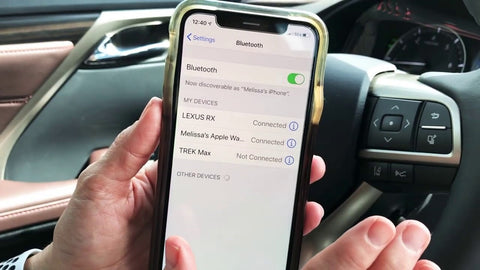
- Open Settings on your iPhone.
- Tap Bluetooth.
- Make sure the Bluetooth switch is on.
- Select your car’s name from the list of available devices.
- Compare the PIN or code shown on both screens.
- Tap Pair on your iPhone.
- Confirm the connection on the car display.
- Allow contacts and notifications if you want hands-free access.
- Select the car as the audio source.
The pairing code is a safety check. It helps confirm that your iPhone is connecting to your car rather than to another nearby device.
After pairing, test a call and play a short song. If the call works but music does not, open your iPhone’s audio output menu and select the car. Some vehicles connect for calls first and need a separate audio setting.

How to pair iPhone to car with Apple CarPlay
Apple CarPlay lets you use approved iPhone apps through the car’s screen. It can show turn-by-turn directions, recent calls, messages, music, and other supported apps.
Your car must support CarPlay. A USB port alone does not always mean that the vehicle supports it. Some ports only charge a phone or play basic media.
Set up wired CarPlay
Wired CarPlay uses a USB cable. It is often the simplest and most reliable option.
- Start the car and leave it parked.
- Turn on Siri on your iPhone.
- Plug the iPhone into the CarPlay USB port.
- Use an Apple-certified Lightning or USB-C cable.
- Unlock the iPhone if prompted.
- Tap Allow or Use CarPlay on the iPhone.
- Select the CarPlay icon on the car screen if it does not open by itself.
The correct USB port may have a CarPlay logo or a smartphone symbol. If your car has several USB ports, try each one.
A damaged cable is a common reason CarPlay fails. If the phone charges but CarPlay does not start, test another high-quality cable. A cable can carry power while failing to transfer data.
Set up wireless CarPlay
Wireless CarPlay uses Bluetooth and Wi-Fi. Both must be active on the iPhone.
- Start the car.
- Press and hold the voice command button on the steering wheel, if your car has one.
- Put the car into wireless or Bluetooth pairing mode.
- Open Settings on your iPhone.
- Tap General, then CarPlay.
- Select your car from the available vehicles.
- Follow the prompts on the iPhone and dashboard.
- Allow CarPlay to connect while the phone is locked, if offered.
Some cars require the first connection through USB before wireless CarPlay becomes available. This is normal for certain factory systems and aftermarket receivers.
Wireless CarPlay is convenient, but it can use more battery than a wired connection. A built-in wireless charging pad can help, although some pads may warm the phone during long trips.
How to pair iPhone to car after a previous connection
If your iPhone connected before but will not connect now, start by checking the selected audio source. The phone may still be paired while the car is using radio, USB, or another device.
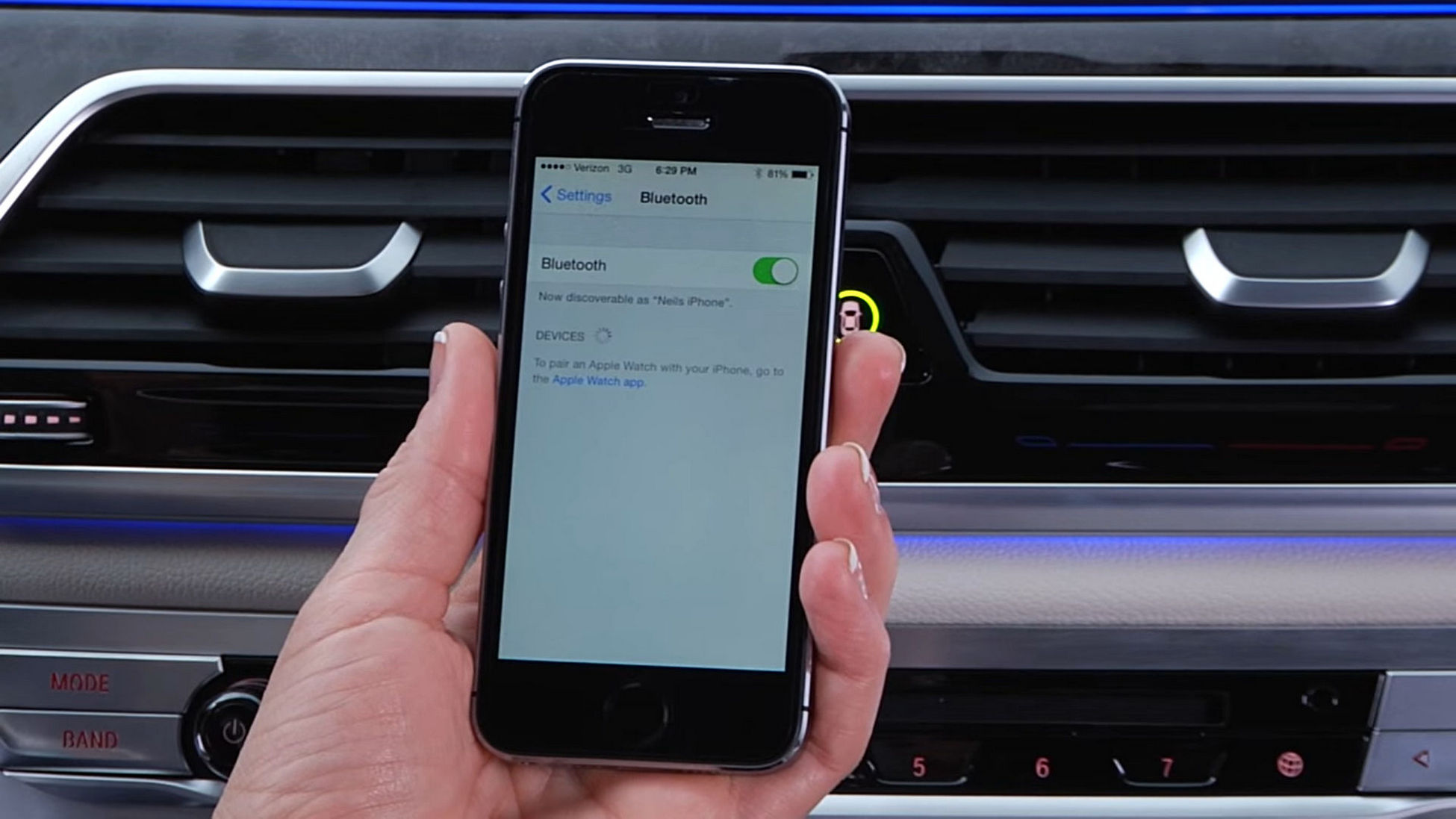
On your iPhone, open Settings and tap Bluetooth. Find your car in the list and check its status. If it says Not Connected, tap the car’s name.
You can also remove the old connection and start again:
- Open Settings on your iPhone.
- Tap Bluetooth.
- Tap the information button beside your car.
- Choose Forget This Device.
- Turn the car off.
- Restart the iPhone.
- Put the car back into pairing mode.
- Pair the devices again.
For CarPlay, open Settings, tap General, and then tap CarPlay. Select your car and choose Forget This Car. Then repeat the setup process.
This reset often fixes a connection that worked for months and suddenly stopped. It clears the old Bluetooth record, much like removing a key that no longer fits a lock.

How to pair iPhone to car when it will not connect
Connection problems usually come from one of four causes: an old pairing record, a weak cable, a full device list, or a phone that is connected to another accessory.
Try these fixes in order:
- Turn Bluetooth off and on again on the iPhone.
- Restart the iPhone and the car’s infotainment system.
- Remove unused phones from the car’s Bluetooth memory.
- Forget the car on the iPhone and pair it again.
- Try a different USB cable for wired CarPlay.
- Check that Siri is enabled.
- Make sure Airplane Mode is off.
- Move other Bluetooth devices away during setup.
- Install available iOS updates.
- Check the vehicle maker’s support page for software updates.
If the car does not appear under Bluetooth, confirm that it is in pairing mode. Simply turning on the stereo may not be enough. Some cars require you to select Add Phone before the iPhone can find them.
If the car appears but pairing fails, compare the code shown on both screens. Cancel the request if the numbers do not match. Then repeat the process.
When CarPlay is missing, check Settings, Screen Time, Content & Privacy Restrictions, and Allowed Apps. CarPlay can be blocked by a restriction, especially on a phone managed by a parent, school, or employer.

How to fix poor sound after pairing iPhone to car
A successful connection does not always mean the sound settings are correct. Your iPhone may be connected for calls but not selected for media playback.
Start a song and open the audio output selector on the iPhone. Choose your car from the list. On the dashboard, select Bluetooth Audio, Media, or the matching source.
If the sound is quiet, raise the volume on both devices. Some cars have separate volume levels for calls, navigation, alerts, and music.
For a delayed or broken connection, try these steps:
- Pause and restart the audio.
- Close and reopen the music app.
- Disconnect other phones from the car.
- Turn off battery-saving features for the audio app if needed.
- Check whether the car is using USB audio instead of Bluetooth.
- Test another app to see if the problem is limited to one service.
Streaming quality can also depend on cellular coverage. Bluetooth carries the sound from the iPhone to the car, but it does not improve a weak internet signal.

How to manage calls, messages, and navigation
Once you pair iPhone to car systems, you can use hands-free features without holding the phone. Siri can place calls, read messages, set reminders, and provide directions.
Voice control is safer than touching the screen, but it still requires attention. The National Highway Traffic Safety Administration advises drivers to keep their focus on driving and avoid distracting tasks.
Use these habits:
- Set your destination before moving.
- Use voice commands for calls and messages.
- Mount the iPhone where it does not block your view.
- Keep the volume low enough to hear traffic and emergency vehicles.
- Stop safely before changing complex settings.
- Do not type while driving.
CarPlay does not display every iPhone app. Apple limits supported apps to reduce distraction. Navigation, audio, communication, parking, charging, and similar categories are commonly supported, but individual apps may behave differently.
If messages are not announced, check Settings, Notifications, Announce Notifications, and CarPlay. Also confirm that the iPhone is not muted or using a Focus mode that blocks alerts.

How to pair iPhone to car with an older stereo
Older cars may not support Bluetooth or CarPlay. You still have several options, but each has limits.
A Bluetooth receiver can add wireless audio to a stereo with an auxiliary input. An FM transmitter can send sound through an unused radio frequency. A USB connection may work for charging or basic music, but it will not create CarPlay unless the stereo supports it.
Common options include:
- Factory Bluetooth, if the car already supports hands-free calling.
- An auxiliary Bluetooth adapter for better audio than an FM transmitter.
- An FM transmitter when no auxiliary input is available.
- An aftermarket stereo with wired or wireless CarPlay.
- A simple charging cable for power only.
FM transmitters can suffer from static in busy areas. Auxiliary adapters often provide cleaner sound, but they may need separate charging.
Before buying an adapter, check the stereo’s inputs and your iPhone’s connector. Newer iPhones may use USB-C, while older models may use Lightning. Compatibility details can change, so verify the product specifications before ordering.
Safety and privacy tips for iPhone car pairing
Pairing your iPhone to a car gives the vehicle access to certain information. Depending on the settings, this may include contacts, recent calls, messages, and call history.
Only approve contact and notification access if you trust the vehicle. If you use a rental car or a shared vehicle, remove your phone before returning it.
To protect your information:
- Delete your phone from rental and loaner cars.
- Forget unfamiliar Bluetooth devices on the iPhone.
- Review CarPlay permissions after pairing.
- Do not leave your unlocked phone in the vehicle.
- Use a secure device passcode.
- Avoid pairing while the car is moving.
A practical lesson from many connection setups is that rushing causes most mistakes. Pair the phone before pulling out of the driveway, then test the call and audio controls while parked.
Frequently Asked Questions About How to Pair iPhone to Car
Why will my iPhone not find my car on Bluetooth?
Your car may not be in pairing mode, or its device list may be full. Turn on the car’s Add Phone or Pair New Device option, remove old phones, and try again.
Can I pair my iPhone to my car without CarPlay?
Yes. Bluetooth can connect your iPhone for hands-free calls and music even when the car does not support CarPlay. The screen will usually show fewer features than a CarPlay system.
Why does my iPhone charge but not connect to CarPlay?
The cable may support charging but not data transfer. Try a certified cable, use the vehicle’s correct CarPlay USB port, and confirm that Siri and CarPlay are enabled.
How do I connect my iPhone to wireless CarPlay?
Turn on Bluetooth and Wi-Fi, place the car in wireless pairing mode, and open Settings, General, and CarPlay on the iPhone. Select your vehicle and follow the instructions shown on both screens.
Can two iPhones connect to the same car?
Many cars can store several phones but connect to only one for calls and media at a time. Set the preferred phone in the car’s device settings or disconnect the other phone before pairing.
How do I remove my iPhone from a car?
On the iPhone, open Settings, Bluetooth, tap the information button beside the car, and choose Forget This Device. For CarPlay, open Settings, General, CarPlay, select the car, and tap Forget This Car.
Conclusion
Knowing how to pair iPhone to car makes daily driving more convenient and keeps calls, music, and directions within easy reach. Bluetooth is best for basic audio and hands-free calls, while wired or wireless CarPlay offers deeper iPhone integration.
Start with the correct pairing mode, confirm the code, test the connection while parked, and remove old devices when problems appear. Use voice controls whenever possible and keep your attention on the road.
Try these steps in your vehicle today, and explore your car manufacturer’s manual for model-specific settings.