How Do I Connect My Phone To My Car: Quick Guide
To connect your phone to your car, use Bluetooth, a USB cable, or Apple CarPlay and Android Auto.
Knowing how do i connect my phone to my car can make calls safer, music easier, and navigation much less stressful. The right steps depend on your phone, car model, stereo system, and connection type, so this guide covers setup, troubleshooting, safety tips, and common mistakes.
Choose the Best Way to Connect Your Phone
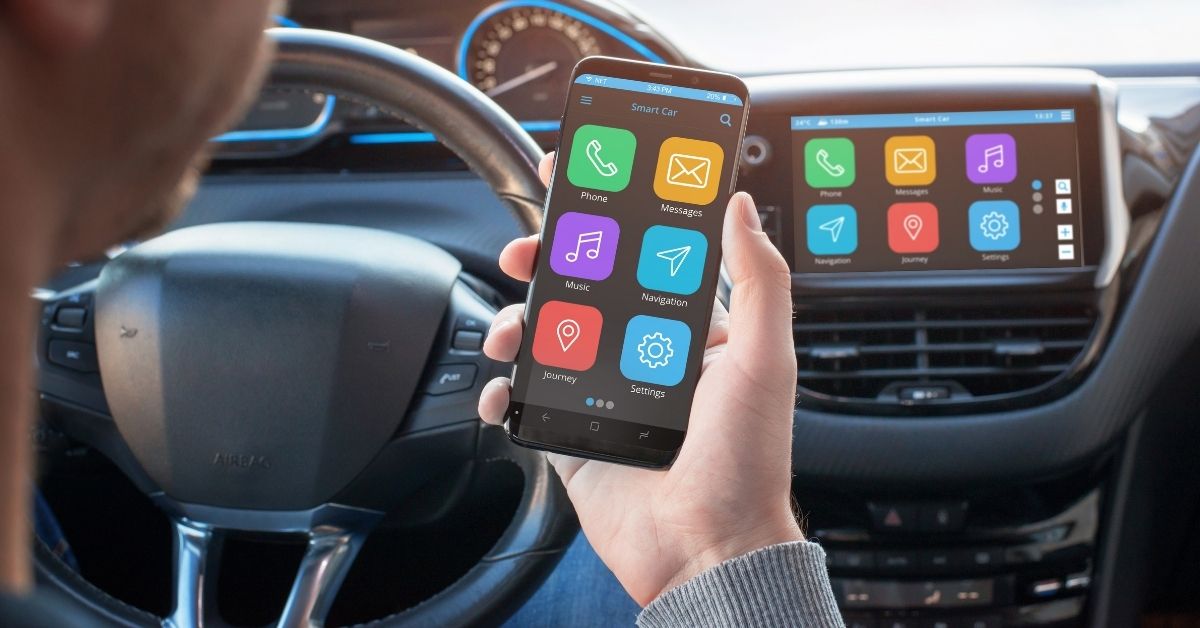
Most cars offer three ways to connect a phone:
• Bluetooth for wireless calls, music, and basic controls
• USB for charging, music, data transfer, and smartphone projection
• Apple CarPlay or Android Auto for maps, messages, music, and voice commands
Before learning how do i connect my phone to my car, check your car’s manual or stereo menu. Some older cars support Bluetooth calls but not wireless music. Others may have a USB port that only charges your phone.
Your phone should also have Bluetooth turned on. For a USB connection, use a quality cable that supports data, not just charging. A damaged or low-cost cable may charge the phone while failing to connect to the car’s software.
The best option depends on your needs:
• Choose Bluetooth for simple, wireless use.
• Choose USB when you want a stable connection and phone charging.
• Choose CarPlay or Android Auto for a larger screen and safer access to apps.
How to Connect Your Phone to Your Car With Bluetooth
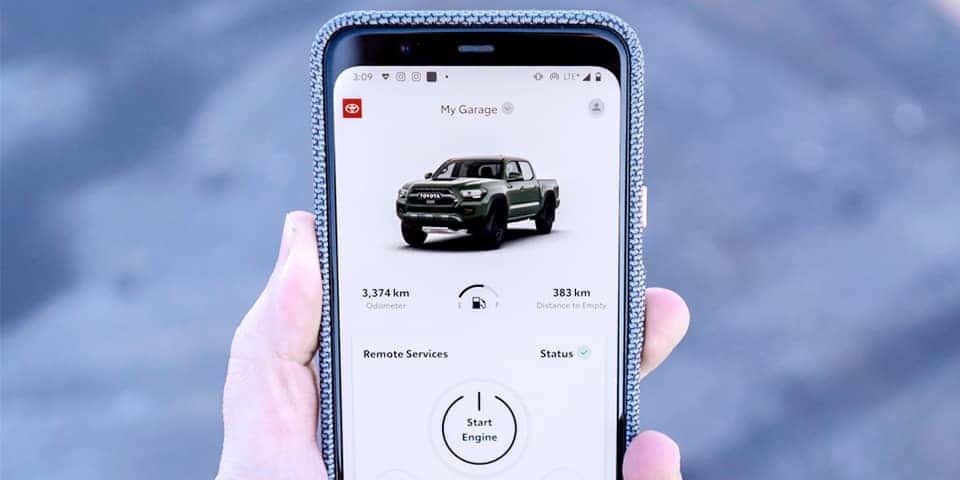
Bluetooth is the most common way to connect a phone to a car. It works with most newer vehicles and many aftermarket stereos.
Step-by-step Bluetooth setup
- Park the car safely and turn on the ignition.
- Open your phone’s Settings app.
- Select Bluetooth and turn it on.
- Open the car’s audio, phone, or connectivity menu.
- Select Add Phone, Pair Device, or a similar option.
- Choose your car’s name from the phone’s Bluetooth list.
- Confirm that the PIN or pairing code matches on both screens.
- Allow contacts and call history access if you want hands-free calling.
- Play music or make a test call while parked.
The exact menu names may differ. A Ford, Toyota, Honda, Chevrolet, or aftermarket stereo may use different labels, but the process is usually similar.
If your car does not appear on the phone, make sure the stereo is in pairing mode. Some systems stop searching after a short time. You may need to select “Add New Device” again.
When learning how do i connect my phone to my car, many people pair the phone but forget to select Bluetooth as the audio source. Use the car’s Media, Source, or Audio button and choose Bluetooth Audio.
How to Connect Your Phone With Apple CarPlay
Apple CarPlay lets you use compatible iPhone features through the car’s display. You can access navigation, phone calls, messages, music, podcasts, and supported apps with fewer distractions.
Wired Apple CarPlay
- Start the car and unlock your iPhone.
- Plug the iPhone into the car’s USB port.
- Use the USB port marked with a phone or CarPlay symbol.
- Follow the instructions on the car and iPhone screens.
- Tap Allow if the phone asks whether you want to use CarPlay.
- Select the CarPlay icon if it does not open automatically.
Use a data cable rather than a charge-only cable. If the connection drops, inspect the cable, clean the phone port carefully, and try another USB port if the car has more than one.
Wireless Apple CarPlay
Wireless CarPlay requires a compatible iPhone and car stereo. Bluetooth and Wi-Fi usually need to be active during setup.
- Turn on Bluetooth and Wi-Fi on the iPhone.
- Put the car stereo into wireless pairing mode.
- Open Settings, then General, then CarPlay on the iPhone.
- Select the car from the available list.
- Accept the connection prompts.
Wireless CarPlay is convenient, but it can use more battery than a wired connection. If you drive for a long time, keep a charging cable nearby.

How to Connect Your Android Phone to Your Car
Android users can connect through Bluetooth, USB, or Android Auto. Android Auto provides maps, calls, messages, music, and voice controls on compatible car displays.
Wired Android Auto
- Turn on the car and keep it parked.
- Unlock your Android phone.
- Connect the phone to the correct USB port.
- Follow the setup instructions on the phone.
- Approve the permissions needed for calls, messages, and navigation.
- Select Android Auto on the car’s screen if needed.
Your phone may need a recent version of Android and the latest system updates. Compatibility can vary by vehicle, stereo, and phone model.
Wireless Android Auto
Wireless Android Auto requires a compatible car and phone. Bluetooth usually starts the connection, while Wi-Fi handles the main wireless link.
- Turn on Bluetooth, Wi-Fi, and Location on the phone.
- Start the car and place the stereo in pairing mode.
- Open the Bluetooth menu on the phone.
- Select the car’s name.
- Accept the Android Auto prompts.
- Wait for Android Auto to appear on the car display.
If wireless Android Auto fails, try a wired connection first. This helps confirm that the phone and car are compatible before you troubleshoot the wireless setup.
For anyone asking how do i connect my phone to my car, Android Auto is often the best choice when the car supports it. It gives you a familiar phone-like interface while limiting many distracting functions.
How to Connect Your Phone to an Older Car
Older cars may not support Bluetooth or smartphone projection. You still have several practical options.
Use an auxiliary cable
If the car has a 3.5-millimeter AUX input, connect one end to the phone and the other to the stereo. Then select AUX as the audio source.
Newer phones may not have a headphone jack. In that case, you may need a compatible USB-C or Lightning audio adapter.
Use an FM transmitter
An FM transmitter sends your phone’s audio to an unused FM radio frequency. Set the transmitter and car radio to the same frequency.
FM transmitters are easy to install, but sound quality depends on local radio interference. Choose a clear frequency and avoid adjusting the device while driving.
Install an aftermarket stereo
An aftermarket receiver can add Bluetooth, USB, Apple CarPlay, or Android Auto. Professional installation is often wise because wiring differs between vehicles.
Avoid cutting factory wires unless you understand the car’s electrical system. Incorrect wiring can damage the stereo, steering wheel controls, or vehicle electronics.
How to Fix Bluetooth Pairing Problems
Bluetooth problems are common, but most have a simple cause. Start with the basics before resetting everything.
Try these steps:
• Turn Bluetooth off and on again.
• Restart the phone and car stereo.
• Move the phone close to the dashboard during pairing.
• Remove old phones from the car’s paired-device list.
• Forget the car on the phone, then pair it again.
• Check that the car is not connected to another phone.
• Install available phone and vehicle software updates.
• Confirm that the phone’s media audio option is enabled.
Many cars store only a limited number of paired phones. If the list is full, the car may reject a new device without showing a clear error.
A common mistake is trying to pair from the phone alone. The car must usually be placed in discovery or pairing mode first.
Another issue occurs when a phone connects for calls but not music. Open the phone’s Bluetooth settings, select the car, and check that Media Audio is enabled. Then choose Bluetooth as the source on the car stereo.

How to Fix Apple CarPlay or Android Auto
Smartphone projection can fail even when Bluetooth works. This is because CarPlay and Android Auto use additional software, permissions, USB data, and sometimes Wi-Fi.
Use this troubleshooting order:
- Unlock the phone before connecting it.
- Try a different certified USB cable.
- Use the vehicle’s main data USB port.
- Restart the phone and infotainment system.
- Remove the car from the phone’s saved CarPlay or Android Auto list.
- Delete the phone from the car’s paired-device list.
- Reconnect and accept every permission request.
- Check for phone, app, and vehicle software updates.
If the car screen shows “USB device not supported,” the cable may not carry data. If the phone charges but the display stays blank, the car may have a charge-only port or may not support smartphone projection.
Wireless connections can fail because of Wi-Fi interference, low battery, or another phone trying to connect. Disconnect nearby devices and repeat the pairing process while parked.
Vehicle software also matters. A phone update can sometimes change compatibility, while an older car stereo may need a firmware update from the vehicle maker.

How to Improve Call and Music Quality
A successful connection is only the first step. Good settings can make the experience smoother.
For clearer calls:
• Keep the phone in a stable place near the front of the cabin.
• Use the car’s built-in microphone when possible.
• Close windows during fast highway driving.
• Reduce cabin noise from fans and loud music.
• Make a test call while parked.
For better music quality, use Bluetooth, USB, or CarPlay and Android Auto instead of an FM transmitter when possible. Bluetooth sound quality depends on the phone, stereo, audio format, and connection strength.
If music sounds quiet, raise both the phone volume and car volume. Some phones remember separate volume levels for Bluetooth devices.
If music pauses, check whether another app is taking control of audio. Wireless earbuds, smartwatches, and other paired devices can sometimes compete with the car connection.

How to Stay Safe While Using Your Phone in the Car
The safest setup lets you prepare before driving and use voice controls while moving. Distracted driving remains a serious road safety issue, and laws differ by state.
Set your destination before leaving. Use the car’s screen and voice assistant instead of holding the phone.
Good habits include:
• Pair the phone before shifting into drive.
• Mount the phone where it does not block your view.
• Use voice commands for calls and messages.
• Avoid typing, browsing, or watching videos while driving.
• Pull over in a safe place when manual changes are needed.
• Keep emergency phone use brief and focused.
Do not assume a hands-free system removes every distraction. A conversation can still take your attention away from traffic. Treat CarPlay and Android Auto as safety aids, not permission to use every phone feature on the road.
Common Mistakes to Avoid
Knowing how do i connect my phone to my car is easier when you avoid a few common errors.
• Pairing while driving: Always complete setup before the car moves.
• Using the wrong USB port: Some ports only provide power.
• Using a charge-only cable: A charging cable may not transfer data.
• Keeping too many paired devices: Delete phones you no longer use.
• Ignoring permissions: Calls, contacts, and messages may not work without approval.
• Forgetting the audio source: Select Bluetooth, USB, AUX, or the correct projection system.
• Sharing one account without checking privacy: Remove personal data before selling or returning a car.
• Installing unsafe accessories: Loose cables can interfere with pedals or controls.
When helping someone set up a car, the most frequent issue is not a broken phone. It is the wrong input selected on the stereo. Checking the source button often solves the problem in seconds.
It is also wise to remove your phone from the car before selling the vehicle. Delete the device from both the phone and the car’s infotainment system.
Privacy and Compatibility Tips
Your car may store contacts, call history, text notifications, navigation destinations, and device names. This information can remain in the stereo after you disconnect the phone.
Before lending, selling, or returning the car:
• Delete the phone from the paired-device list.
• Remove saved contacts and call history if the system allows it.
• Sign out of music or navigation accounts.
• Reset the infotainment system if you are transferring ownership.
Compatibility is not always universal. A newer phone may work with one car but not another. An adapter can add wireless CarPlay or Android Auto, but results vary by vehicle and adapter quality.
Read the vehicle manual and phone support information when possible. Manufacturer guidance is more reliable than a random online comment, especially for firmware updates and system resets.
Frequently Asked Questions About How Do I Connect My Phone to My Car
How do I connect my phone to my car for the first time?
Turn on Bluetooth on your phone and open the car’s phone or connectivity menu. Choose Add Device, select the car on your phone, confirm the matching code, and choose Bluetooth Audio for music.
Why will my phone not connect to my car?
The car may not be in pairing mode, the paired-device list may be full, or another phone may already be connected. Restart both devices, remove old pairings, and try the setup again while parked.
Can I connect my phone to my car without Bluetooth?
Yes. You can use a USB cable, AUX cable, FM transmitter, or an aftermarket stereo. USB, AUX, and Bluetooth usually provide better results than an FM transmitter.
Why does my phone charge but not connect to the car?
The USB port or cable may provide power but not data. Try a different data-capable cable and use the USB port marked for smartphone connection, CarPlay, or Android Auto.
Can I connect two phones to my car?
Many cars can store several phones, but only one may handle calls or music at a time. Some systems let you set a primary phone and switch devices through the infotainment menu.
Is Apple CarPlay better than Bluetooth?
CarPlay offers maps, voice controls, messages, and supported apps on the car display, while Bluetooth is simpler and works in more vehicles. The better choice depends on your car, phone, and preferred features.
Does Android Auto work with every Android phone?
No. Android Auto requires a compatible phone, operating system, cable or wireless connection, and vehicle stereo. Check the requirements for your specific car and phone before buying an adapter.
How can I disconnect my phone from my car?
Turn off Bluetooth, unplug the USB cable, or select another device from the car’s menu. For a permanent removal, delete the car from the phone and the phone from the car’s paired-device list.
Conclusion
Connecting a phone to a car usually takes only a few minutes. Bluetooth is best for simple wireless calls and music, while USB, Apple CarPlay, and Android Auto offer stronger features and more stable control.
If you are still wondering how do i connect my phone to my car, start with the car manual, use a reliable cable, and check the correct audio source. Set everything up while parked, protect your personal data, and use voice controls on the road. Try the method that fits your vehicle today, then explore your car’s connectivity settings for an easier drive.